Manage containers
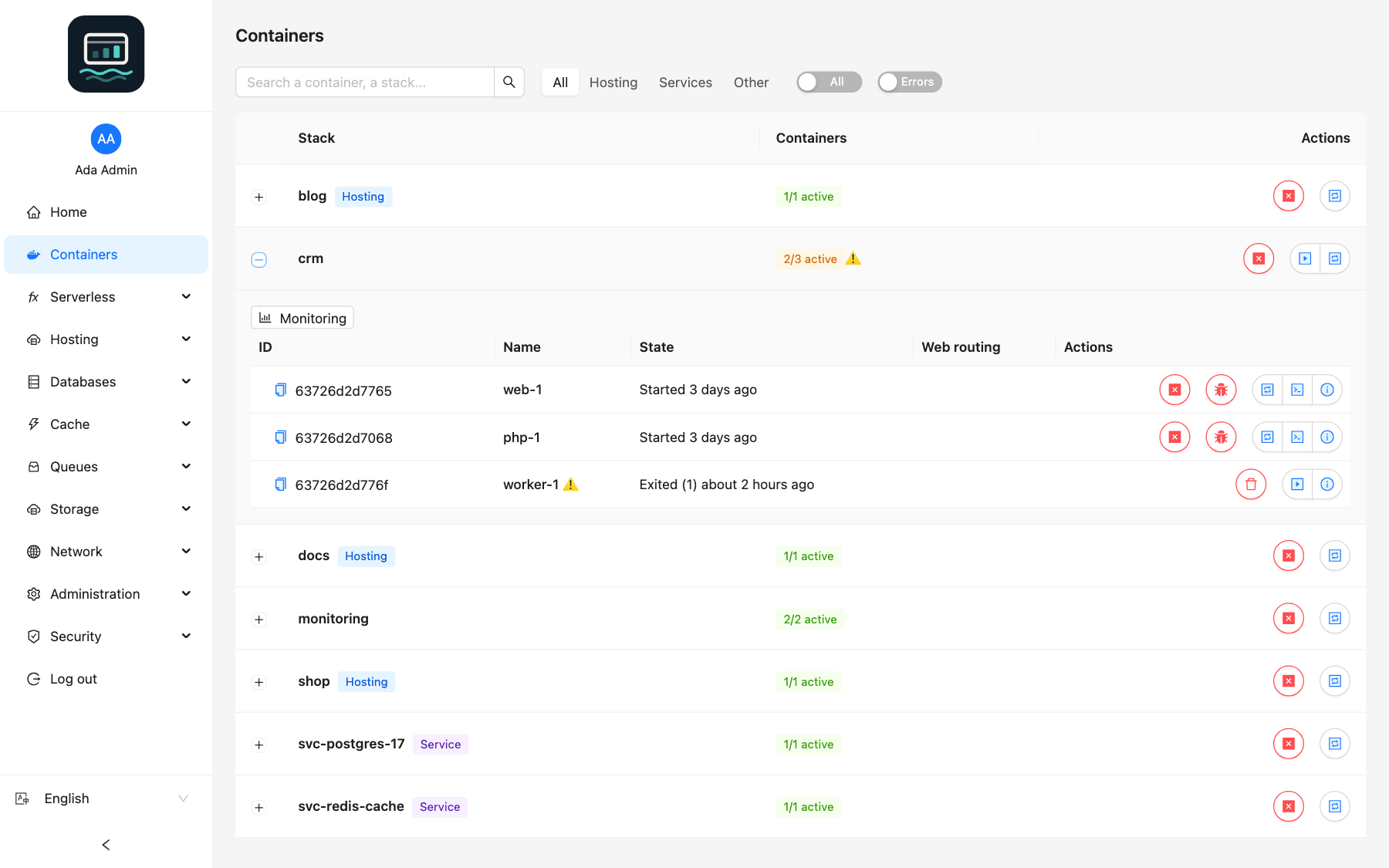
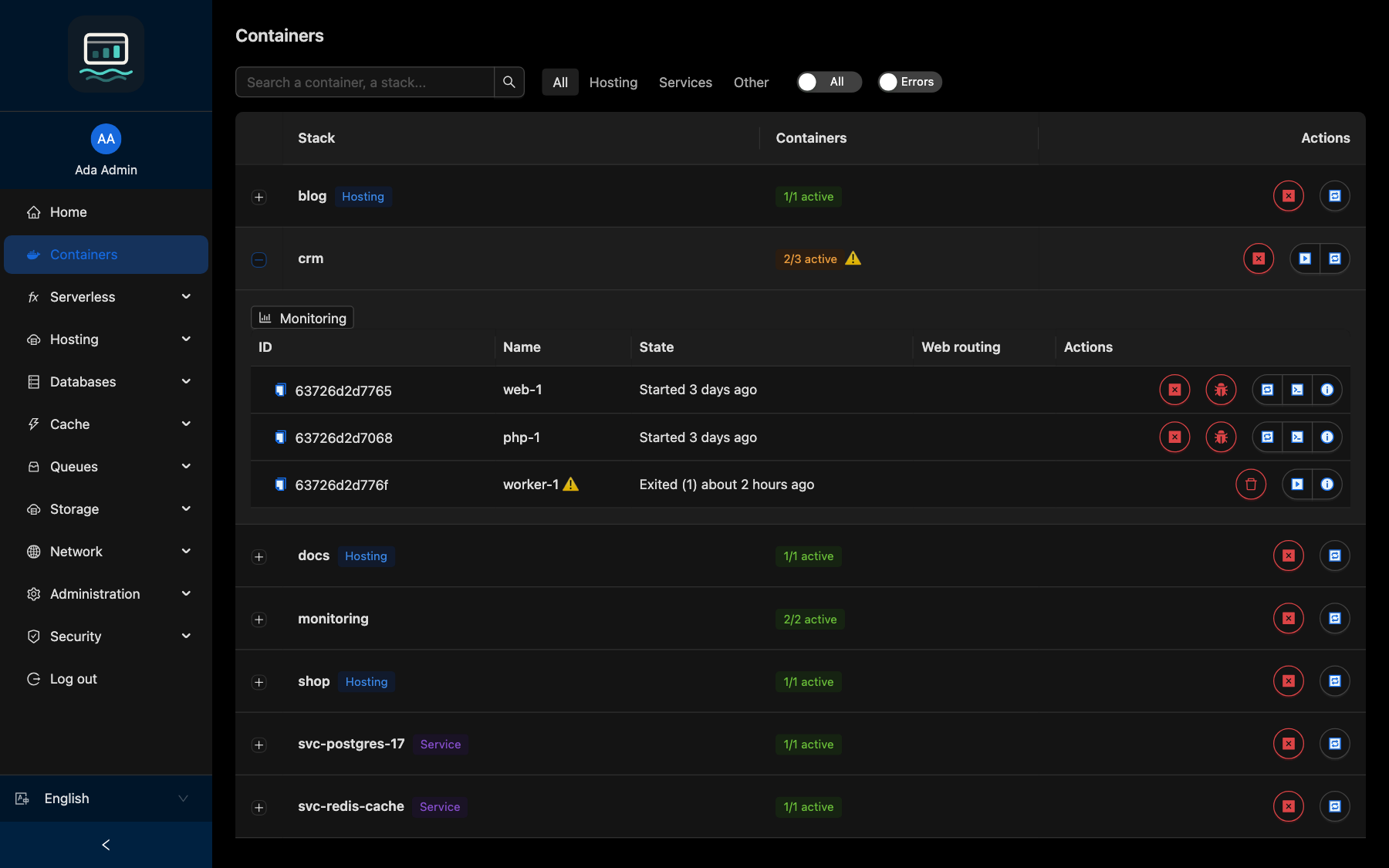
The Containers page (menu Compute) lists the containers you can access, grouped by compose stack. Every user can use it, on the containers granted to them.
Find a container
| Control | Effect |
|---|---|
| Search a container, a stack... | Filters by container or stack name |
| Stack type | All, Hosting, Services or Other |
| Active / All | Hides or shows the stacks with no running container |
| Errors | Shows only the stacks with a container that exited abnormally |
Click a stack row to expand it and see its containers. Containers without a compose project are grouped under No stack.
Container actions
The Actions column shows the buttons that match the container's state.
| Button | Shown when | Confirmation |
|---|---|---|
| Start | Not running | No |
| Restart | Running | No |
| Stop | Not exited | Yes |
| Kill | Not exited | Yes: stops at once, without a clean shutdown |
| Delete | Exited | Yes |
| Detached terminal | Running | No: opens a terminal in a popup window |
| Details and terminal | Always | No: opens the details panel |
To act on every container of a stack at once, see Stack actions.
Details, logs and terminal
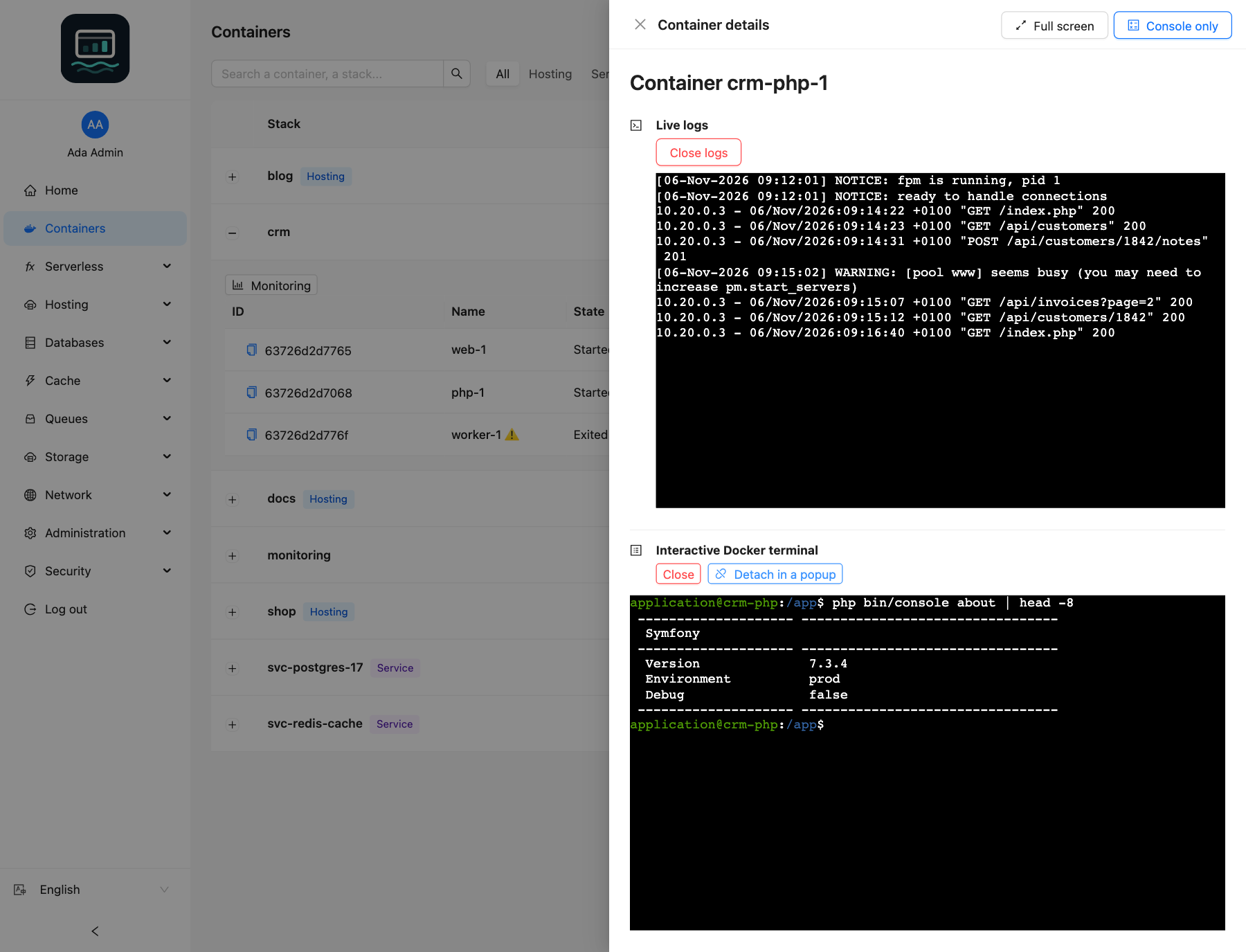
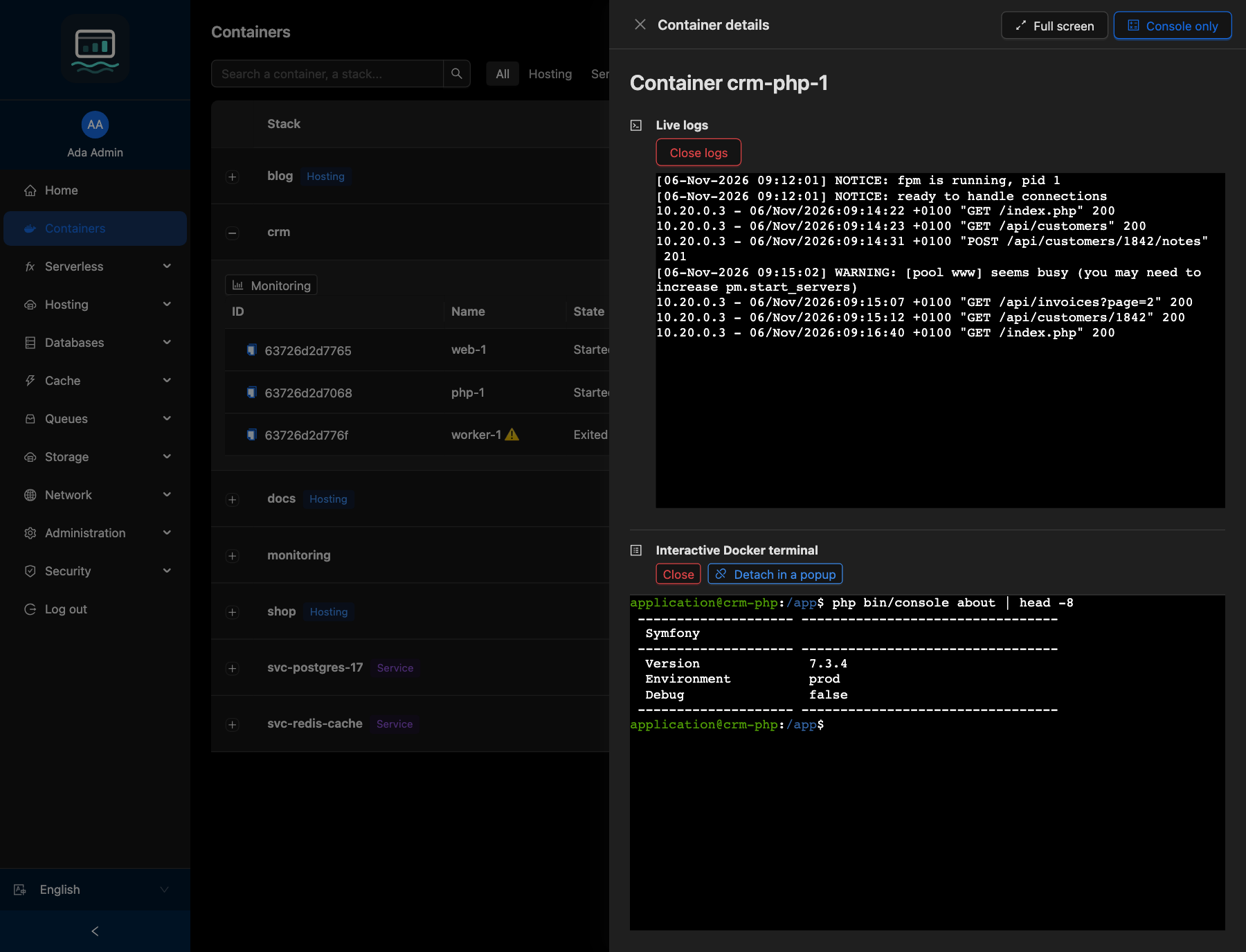
Click Details and terminal to open the Container details panel.
| Section | Content |
|---|---|
| Details | Compose project, identifier, image, state, start date, restart count, network, mount points |
| Log path | Download the full container log |
| Live logs | Show logs streams the last 100 lines, then new ones |
| Interactive Docker terminal | Open a terminal starts /bin/sh in the container; Detach moves it to a popup |
Full screen widens the panel. Console only hides the details and keeps the terminal.
Resource usage
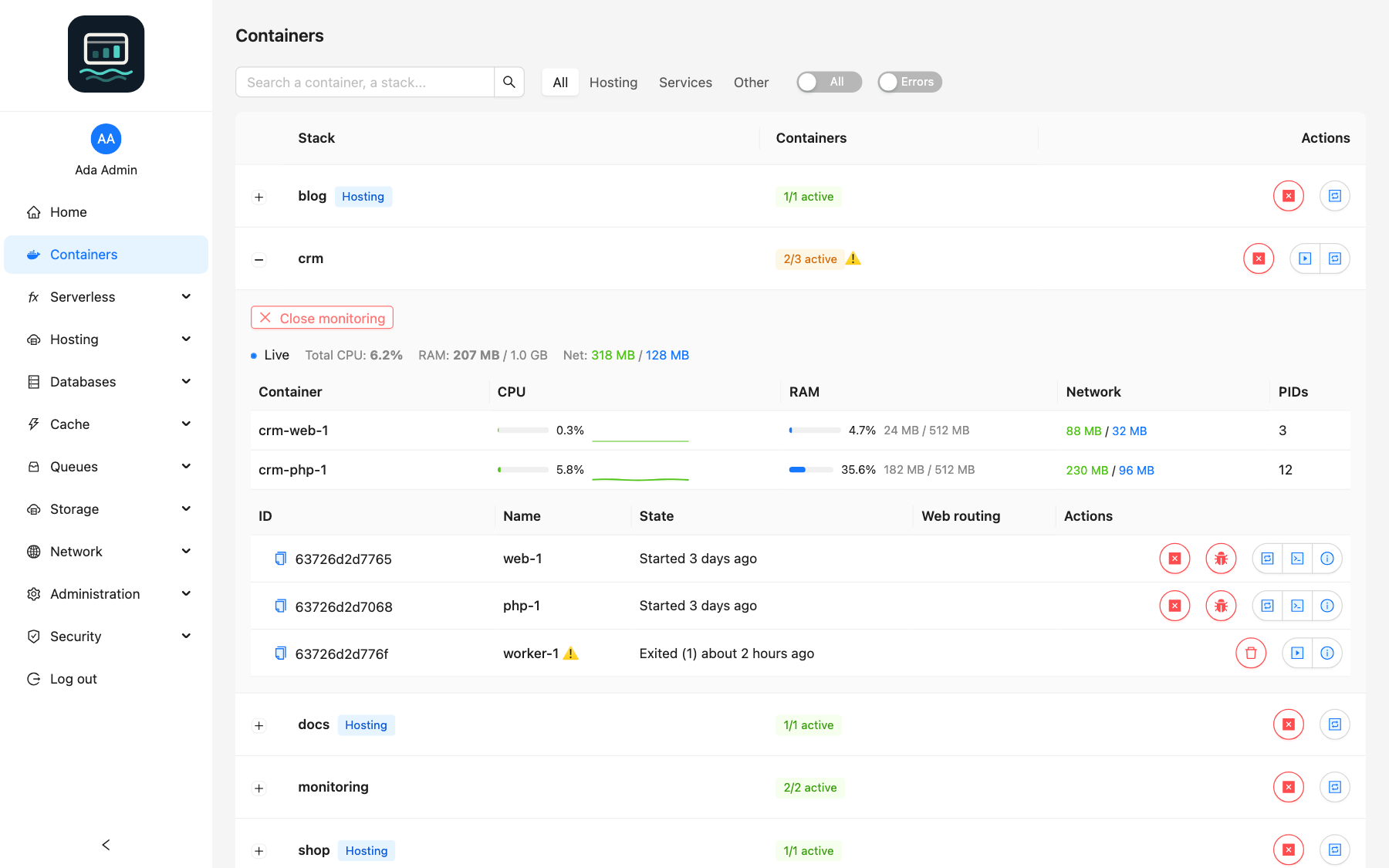
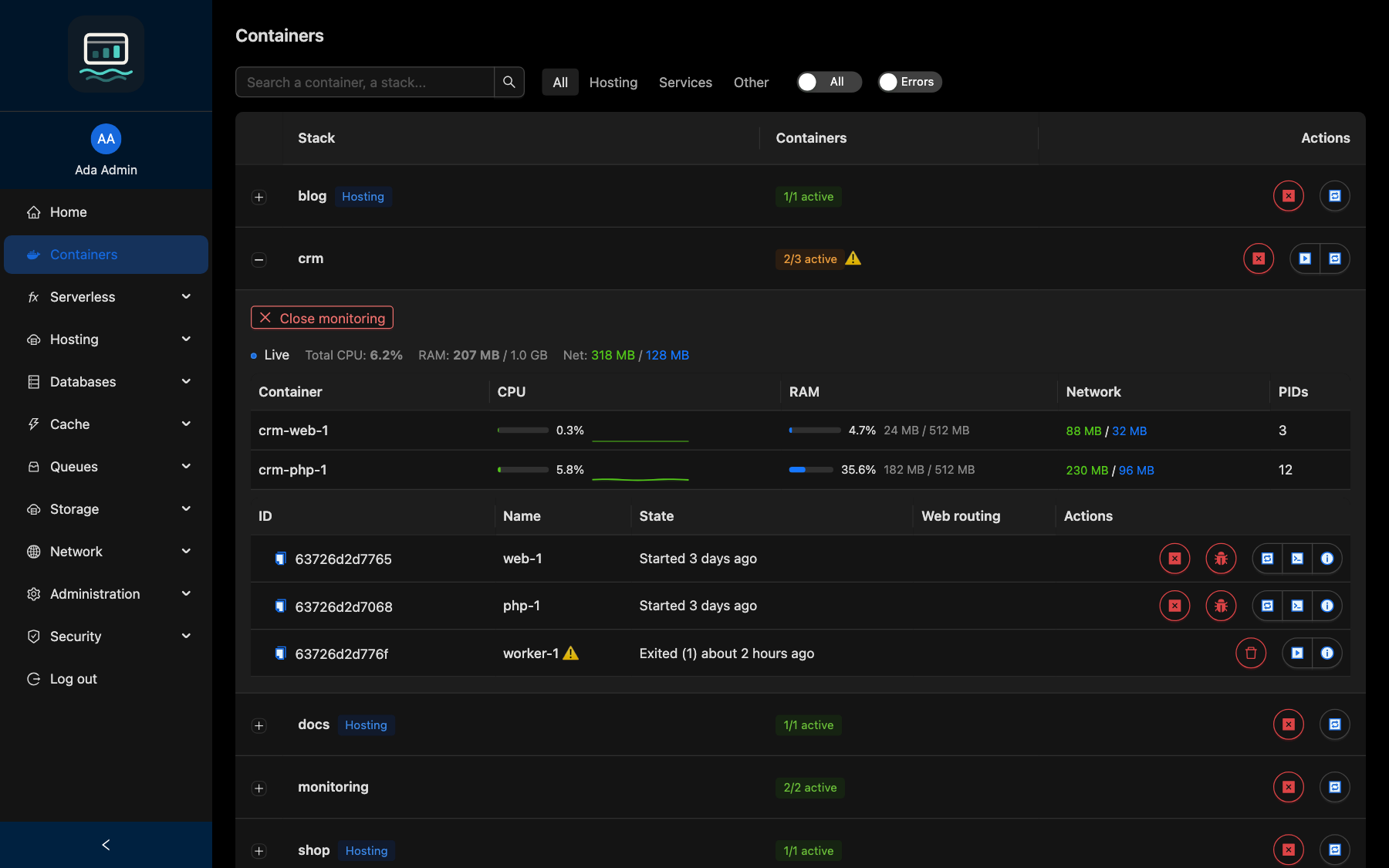
In an expanded stack, click Monitoring to show live CPU, RAM, network and PIDs for its containers. Click Close monitoring to stop.
Good to know
- The terminal needs a TTY. If the panel says it is not available, add
tty: trueto the service in the compose file, or start the container with-t. - Containers marked as system containers are hidden from everyone, and nobody can open a shell in the panel's own API container.
- Function containers (
fn-*) are managed from Serverless → Functions: shell, file copy and actions are refused on them. - A user profile sees only the containers listed in its permissions; ask your administrator for more.
- The same actions exist in the
lochCLI:loch ps,loch logs,loch shell,loch stats,loch inspect,loch start/stop/restart. The CLI also copies files (loch cp) and opens port tunnels (loch proxy).