Sign in and the home page
Loch Panel has no password of its own: you sign in with your organization account (single sign-on).
Sign in
- Open the panel address given by your administrator.
- The panel sends you to your organization's sign-in page. Sign in there.
- You come back to the panel, on the Home page.
To sign out, click Log out at the bottom of the menu.
Your profile
| Profile | What you see |
|---|---|
| Administrator | Every container, except system ones, and the administration menus |
| User | Only the containers your administrator granted you |
The first person to sign in becomes administrator. Everyone after is a user with no container until an administrator grants some.
The home page
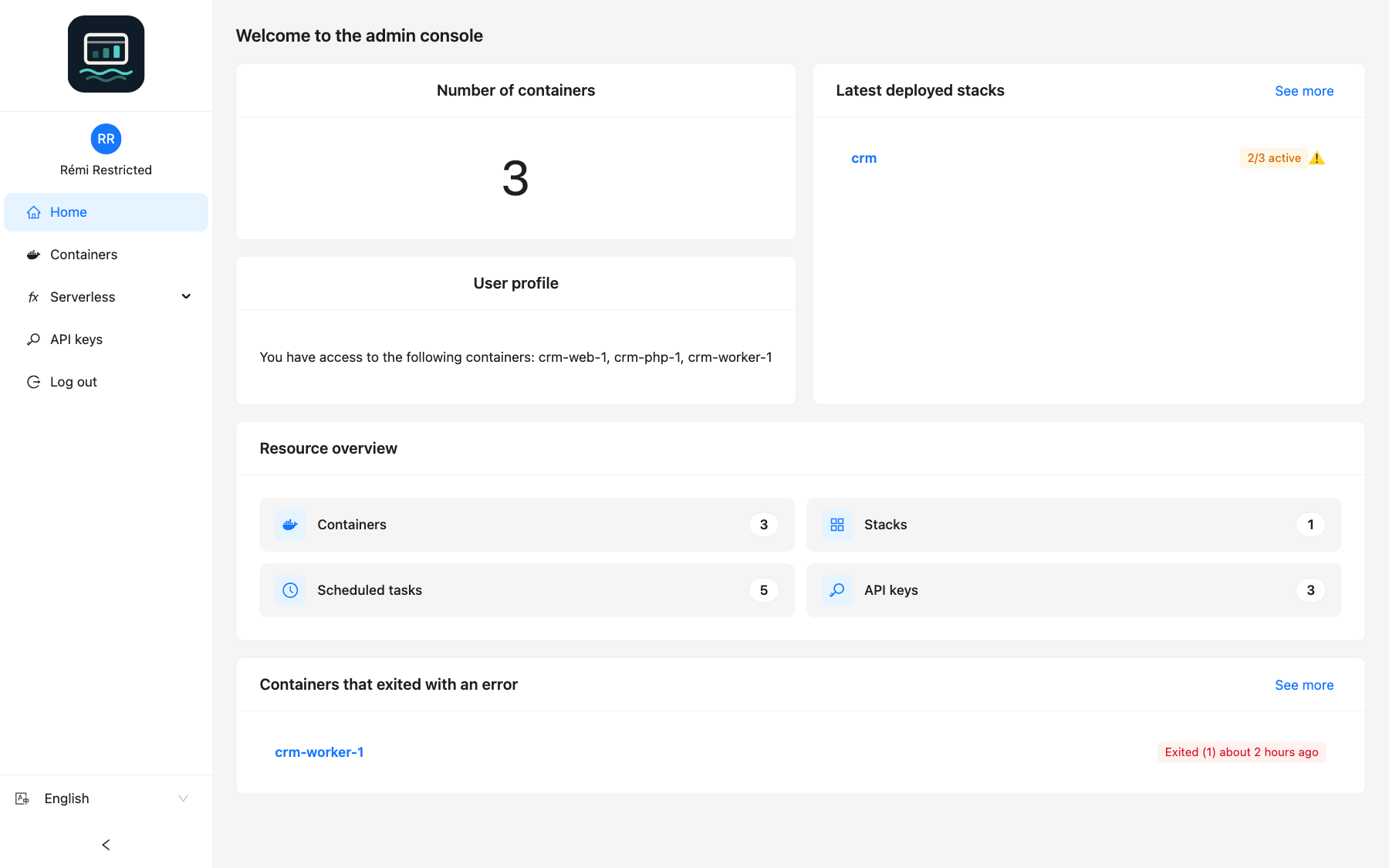
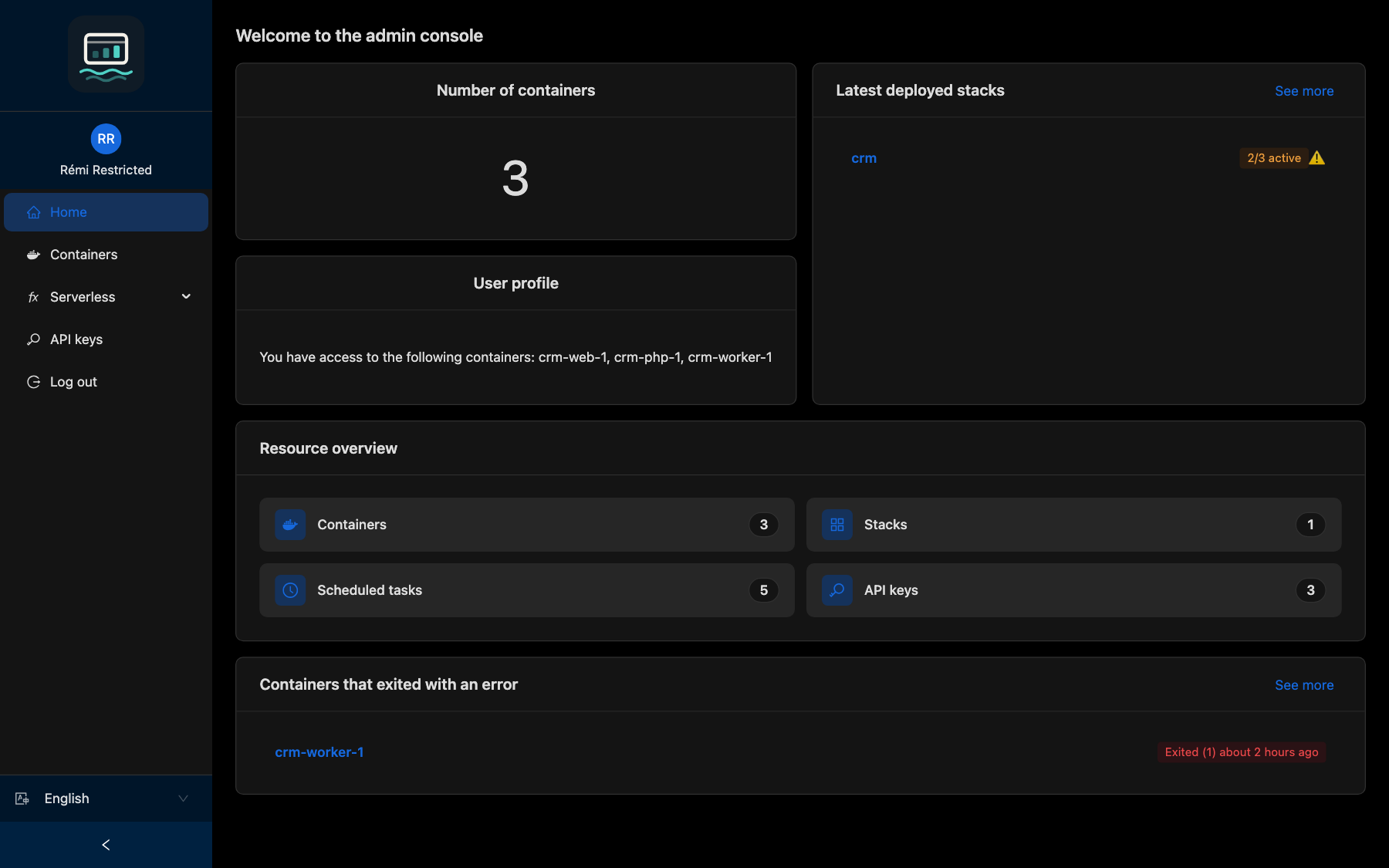
| Card | Content |
|---|---|
| Number of containers | Containers you can see |
| User profile / Administrator profile | Your profile and the containers you can access |
| Resource overview | How many containers, stacks, scheduled tasks and API keys you have; admins also see sites, services, functions, private networks, SFTP users and domains of the enabled modules. Click a tile to open its page |
| Latest deployed stacks | The 5 most recent stacks, with their state |
| Containers that exited with an error | Up to 5 containers stopped with a non-zero exit code; click one to find it in Containers |
| Latest domains | Admin only: the 5 latest routed domains |
| Technical support | Admin only, when your organization configured it |
| Service status | When your organization configured a status page |
Good to know
- No access has been set up by your administrator yet. means your profile has no container: ask your administrator.
- The menu shows only what your profile and the enabled features allow.
- The language selector changes the interface language (10 languages).
- A browser session lasts one hour. After that, the panel sends you through the sign-in page again.